
Dell Care in Patna
Dell laptops are known for reliability and long-term performance, but as software becomes heavier and daily usage increases, many users begin to notice slow speed, long boot time, and lag while multitasking. In most cases, the problem is not the laptop itself—it is simply outdated hardware like a traditional hard drive or low RAM capacity.
Upgrading to an SSD and increasing RAM is one of the most effective ways to make an old or slow Dell laptop feel fast again. This guide explains everything you need to know about SSD and RAM upgrades, their benefits, warning signs, and how professional support can help you get the best performance safely.
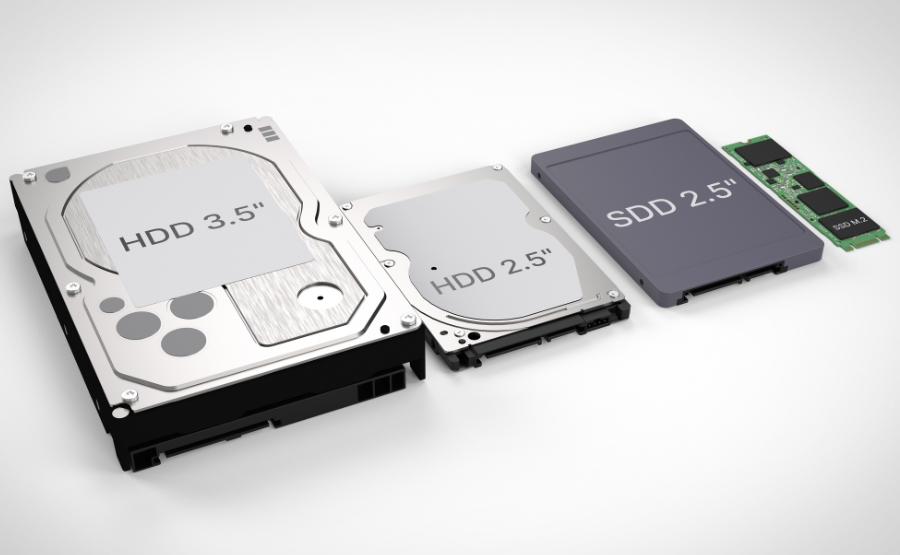
Why SSD and RAM Upgrades Are Important
Over time, operating systems, browsers, and software updates require more memory and faster storage. When a laptop runs on an old HDD with limited RAM, it struggles to keep up with modern tasks.
An SSD and RAM upgrade can:
-
Improve overall system speed
-
Reduce laptop boot time from minutes to seconds
-
Enable smooth multitasking without freezing
-
Enhance gaming and software performance
-
Increase the usable life of your Dell laptop
For users looking for reliable upgrade service, professional assistance from Dell Care in Patna ensures correct compatibility and safe installation.
Signs Your Dell Laptop Needs an Upgrade
Many people continue using a slow laptop without realizing that a simple upgrade can solve the issue. Here are clear warning signs:
-
Laptop takes too long to start
-
Programs open very slowly
-
System hangs while multitasking
-
Disk usage stays near 100%
-
Insufficient memory warnings appear
If you notice these problems regularly, a hardware check at Dell Care in Patna can confirm whether SSD or RAM upgrade is the right solution.
Benefits of Upgrading to an SSD
Replacing a traditional hard drive with a Solid State Drive (SSD) is the biggest performance improvement you can make.
1. Faster Boot and Shutdown
SSDs load the operating system much quicker, often starting Windows in 10–20 seconds.
2. Smooth Software Performance
Applications like Chrome, MS Office, Photoshop, and coding tools run far more smoothly.
3. Better Durability
Unlike HDDs, SSDs have no moving parts, making them safer from physical damage.
4. Lower Heat and Power Usage
SSDs consume less power, which can slightly improve battery backup and reduce heating.
To ensure proper cloning of data and correct SSD compatibility, many users prefer installation through Dell Care in Patna rather than risky local methods.
Benefits of Increasing RAM
RAM directly affects multitasking and responsiveness. If your laptop has 4GB RAM, upgrading to 8GB or 16GB can transform daily performance.
Key advantages include:
-
Running multiple apps without lag
-
Faster browser performance with many tabs
-
Better support for video editing, coding, and design software
-
Improved gaming stability
Correct RAM type, frequency, and maximum supported capacity must be checked carefully. Professional technicians at Dell Care in Patna help avoid compatibility mistakes.
SSD vs RAM – Which Upgrade Should You Do First?
This is one of the most common questions.
-
If your laptop has an HDD → Upgrade to SSD first
-
If SSD already installed but system still slow → Increase RAM
-
For best performance → Upgrade both SSD and RAM together
A proper diagnosis from Dell Care in Patna ensures you spend money only where it truly improves speed.
Safe Upgrade Process for Dell Laptops
Professional upgrade service usually follows these steps:
-
Complete hardware diagnosis
-
Checking compatible SSD and RAM specifications
-
Secure data backup or cloning
-
Careful installation without damaging motherboard
-
OS optimization and driver update
-
Final performance testing
This structured process protects both data safety and hardware life, which is why expert handling is always recommended.
Common Mistakes to Avoid During Upgrade
Many users try DIY upgrades or choose very cheap parts, which can create bigger problems.
Avoid:
-
Buying duplicate or low-quality SSD/RAM
-
Installing wrong RAM frequency or type
-
Skipping data backup before upgrade
-
Improper fitting that damages motherboard pins
Professional service prevents these risks and ensures long-term stability.
How Much Performance Improvement Can You Expect?
After SSD and RAM upgrade, most users experience:
-
3x to 8x faster speed
-
Instant software opening
-
Smooth multitasking
-
Reduced system hanging
-
Extended laptop lifespan by several years
This makes upgrading far more affordable than buying a new laptop.
Conclusion
An SSD and RAM upgrade is the smartest and most cost-effective way to revive a slow Dell laptop. Instead of replacing your entire device, a simple hardware improvement can deliver near-new performance, better reliability, and longer usability.
However, correct part selection, safe installation, and proper system optimization are essential. Choosing experienced professionals ensures your investment truly improves performance without risking data or hardware damage.
Frequently Asked Questions (FAQs)
1. Is SSD upgrade better than buying a new laptop?
Yes. In many cases, SSD upgrade provides major speed improvement at a much lower cost.
2. How much RAM is enough for normal use?
8GB RAM is ideal for daily work, while 16GB is better for heavy software or gaming.
3. Will my data be safe during SSD upgrade?
Yes, if proper backup or cloning is done before installation.
4. How long does SSD and RAM upgrade take?
Usually 1–3 hours, depending on laptop model and data size.
5. Can every Dell laptop be upgraded?
Most models support SSD and RAM upgrades, but compatibility must be checked first.