
Dell Laptop Service Center In Patna
How to Fix Dell Laptop Speaker Not Working Issue – Step-by-Step Guide
If your Dell laptop speaker is not working, it can be frustrating—especially when videos, meetings, or music suddenly go silent. The good news is that in most cases, this issue can be fixed at home without any technical expertise. This guide explains all possible causes and solutions in simple steps so that anyone can resolve the problem.
Many users search for help online or visit a Dell Laptop Service Center In Patna immediately, but before doing that, it’s worth trying these solutions.
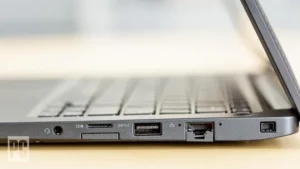
Common Reasons Why Dell Laptop Speakers Stop Working
Before fixing the issue, it’s important to understand what might be causing it:
-
Sound muted accidentally
-
Wrong audio output device selected
-
Outdated or corrupted audio drivers
-
Windows audio services not running
-
Recent Windows update causing conflict
-
Hardware speaker damage (rare)
Step 1: Check Volume and Mute Settings
This may sound basic, but it solves the problem for many users.
-
Click on the speaker icon in the taskbar
-
Make sure volume is turned up
-
Ensure the sound is not muted
-
Try playing a YouTube video to test sound
Also check the physical volume keys on your keyboard.
Step 2: Select the Correct Playback Device
Sometimes sound goes to the wrong output device.
-
Right-click the speaker icon
-
Select Sound Settings
-
Under Output, choose Speakers (Realtek Audio / Dell Audio)
-
Click Test to confirm sound
If headphones or Bluetooth devices are selected, laptop speakers won’t work.
Step 3: Restart Windows Audio Services
Windows audio services may stop working due to system errors.
-
Press Windows + R, type
services.msc -
Find Windows Audio
-
Right-click → Restart
-
Do the same for Windows Audio Endpoint Builder
This step often fixes sudden sound issues without reinstalling anything.
Step 4: Update or Reinstall Audio Drivers
Audio drivers are a major cause of speaker problems.
-
Press Windows + X → Device Manager
-
Expand Sound, video and game controllers
-
Right-click your audio driver → Update driver
-
Choose Search automatically for drivers
If that doesn’t work, uninstall the driver and restart the laptop. Windows will reinstall it automatically.
If the issue still persists, professional help from a Dell Laptop Service Center In Patna may be required.
Step 5: Run Windows Audio Troubleshooter
Windows has a built-in tool to detect sound problems.
-
Go to Settings → System → Sound
-
Click Troubleshoot
-
Follow on-screen instructions
This tool can automatically fix common audio configuration issues.
Step 6: Check BIOS and Hardware (Advanced Users)
-
Restart laptop and enter BIOS (usually F2)
-
Check if audio is enabled
-
Restore BIOS to default settings
If speakers still don’t work, it may be a hardware issue such as damaged speakers or motherboard audio IC. In such cases, visiting a trusted Dell Laptop Service Center In Patna is the safest option.
When Should You Visit a Service Center?
You should seek professional repair if:
-
Speakers don’t work even in BIOS
-
External speakers also fail
-
Laptop fell or suffered liquid damage
-
Reinstalling drivers didn’t help
A certified Dell Laptop Service Center In Patna can properly diagnose and replace faulty components using genuine parts.
Conclusion
Most Dell laptop speaker issues are caused by software, drivers, or simple settings and can be fixed at home using the steps above. However, if the problem is hardware-related, professional assistance is necessary. Instead of guessing or risking damage, consulting a reliable Dell Laptop Service Center In Patna ensures long-term safety and performance.
Frequently Asked Questions (FAQ)
Q1. Why is my Dell laptop speaker not working but headphones work?
This usually means the wrong playback device is selected or the internal speakers are disabled in settings.
Q2. Can Windows updates cause sound problems?
Yes, sometimes updates conflict with audio drivers. Reinstalling or updating drivers usually fixes this.
Q3. How do I know if my Dell laptop speaker is damaged?
If sound doesn’t work even in BIOS or after reinstalling Windows, it’s likely a hardware issue.
Q4. Is driver reinstall safe?
Yes, reinstalling audio drivers is safe and commonly recommended.
Q5. When should I stop troubleshooting and seek repair?
If none of the steps work, visiting a professional Dell Laptop Service Center In Patna is the best solution.